In the UAE, many customers would rather send a WhatsApp message or tap to call than fill in a form. If your analytics only counts form submissions, most of your real enquiries are invisible, and your ads and SEO look less effective than they are.
This guide shows how to connect Google Tag Manager (GTM) to your website and track every WhatsApp and phone click as an event in Google Analytics 4 (GA4). It takes about thirty minutes, needs no coding beyond pasting two snippets, and works on WordPress, Shopify and most other platforms.
What you need before you start
- A Google account with access to Google Analytics 4, and your GA4 Measurement ID (it starts with
G-). - Admin access to your website, or to a plugin that can add code to the head and body.
- WhatsApp links that use
wa.meorapi.whatsapp.com, and phone links that start withtel:.
| Tool | What it does |
|---|---|
| Google Tag Manager | Loads and manages tracking code without editing the website each time |
| Google Analytics 4 | Stores the events and shows reports |
| Tag Assistant | Lets you test tags before they go live |
Step 1: Create a Google Tag Manager account and container
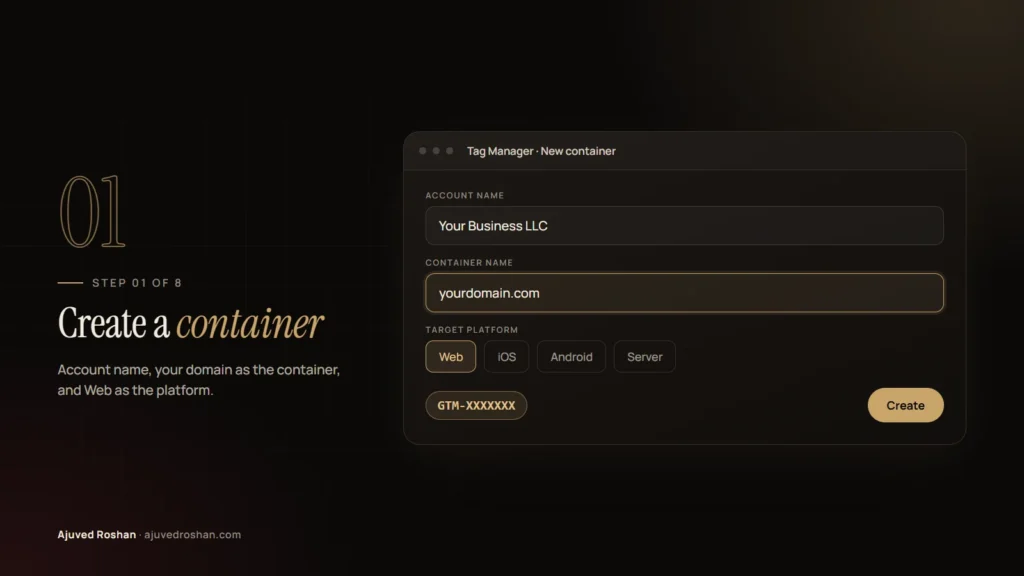
Go to tagmanager.google.com and click Create account. Enter your business name as the account name and your domain as the container name, choose Web as the target platform and click Create.
GTM then shows your container ID, which looks like GTM-XXXXXXX, and two code snippets. Keep that window open for the next step.
Step 2: Add the GTM code to your website
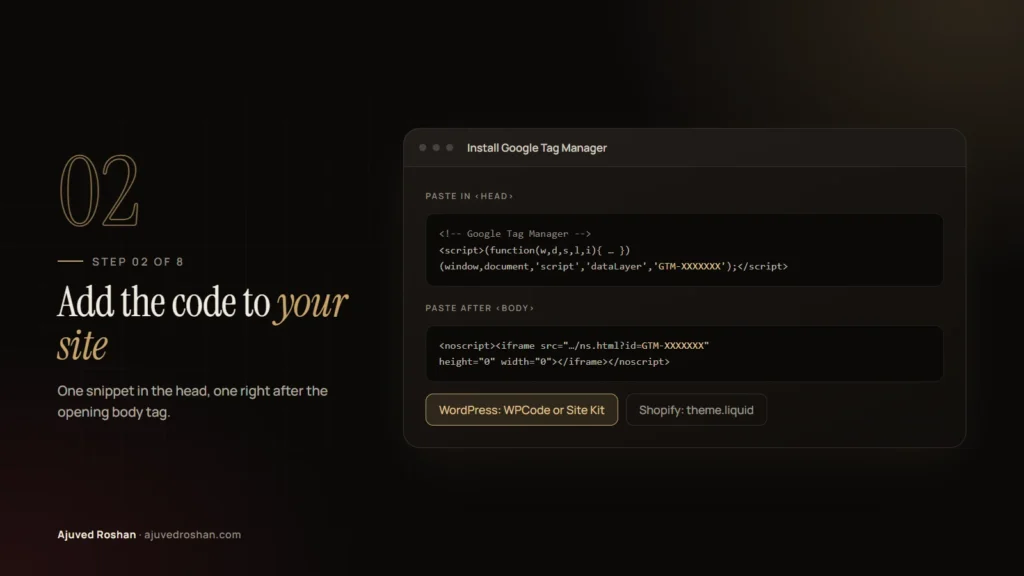
The first snippet goes as high as possible inside the <head> of every page. The second, a <noscript> snippet, goes immediately after the opening <body> tag.
- WordPress: use a header and footer code plugin such as WPCode, or Google’s Site Kit plugin, which can add GTM for you.
- Shopify: add the snippets in Online Store → Themes → Edit code → theme.liquid.
- Custom sites: add them to the shared header template so every page has them.
Add GTM only once. If GA4 is already installed directly on the site, remove that code after GTM is working, or every visit will be counted twice.
Step 3: Turn on the built-in click variables
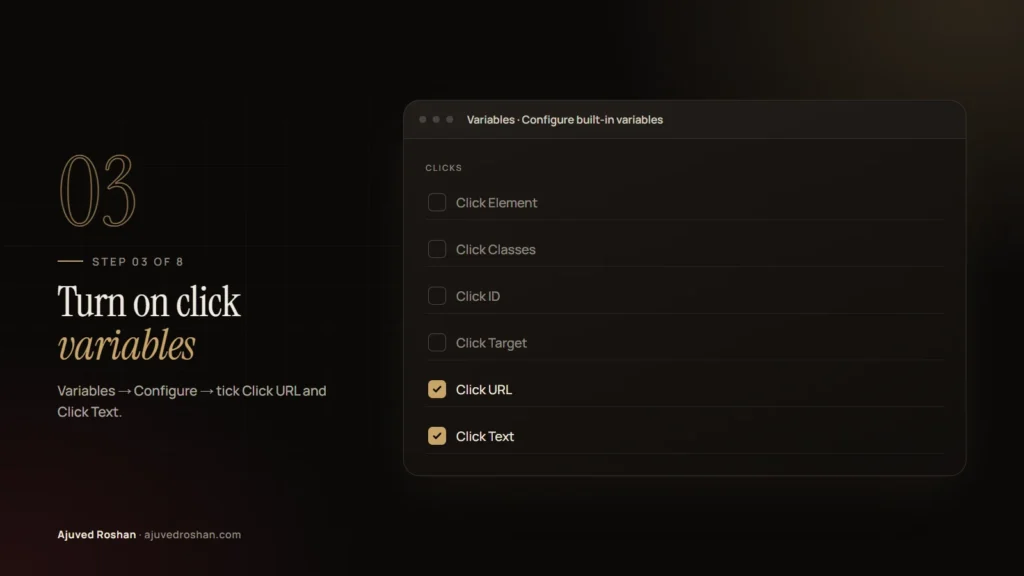
In GTM, open Variables, click Configure under Built-In Variables and tick Click URL and Click Text. These let triggers check where a link goes and what it says.
Step 4: Create the WhatsApp and call triggers
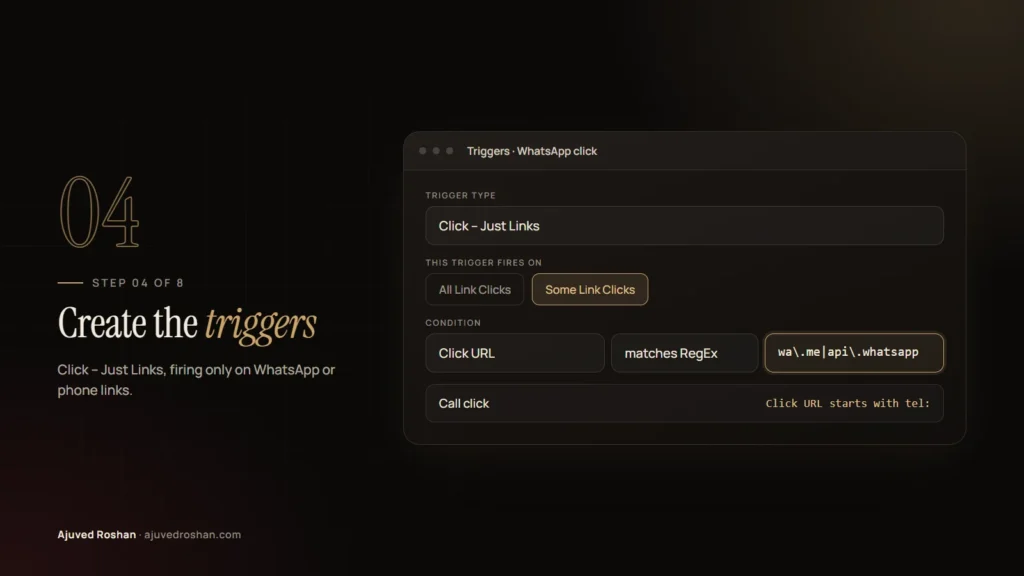
Open Triggers → New and choose Click – Just Links. Select Some Link Clicks and set the condition:
| Trigger name | Condition |
|---|---|
| WhatsApp click | Click URL matches RegEx wa\.me|api\.whatsapp\.com |
| Call click | Click URL starts with tel: |
Using a pattern for WhatsApp catches both link formats, including the floating WhatsApp button many sites use.
Step 5: Add the Google tag for GA4
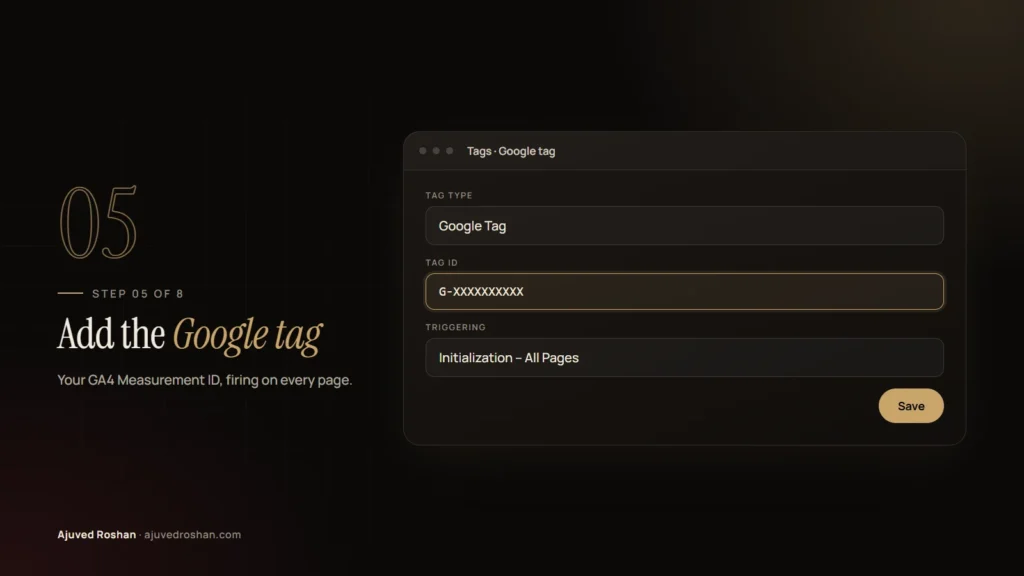
Open Tags → New, choose Google Tag, paste your GA4 Measurement ID (G-…) and set the trigger to Initialization – All Pages. This loads GA4 on every page, so the click events have somewhere to go.
Step 6: Create the GA4 event tags
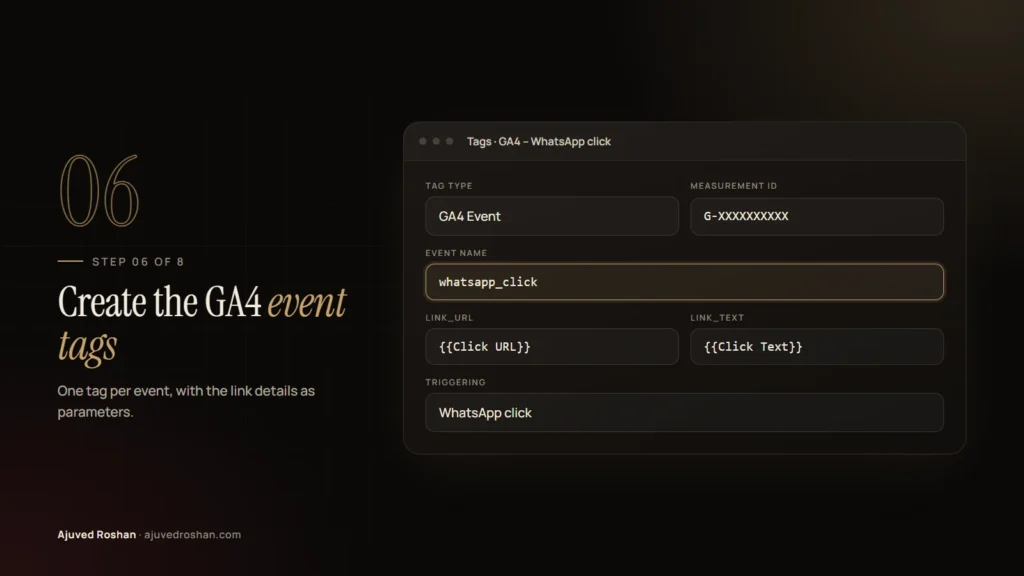
Create a new tag of type Google Analytics: GA4 Event. Enter the same Measurement ID and use these settings:
| Setting | WhatsApp tag | Call tag |
|---|---|---|
| Event name | whatsapp_click | phone_click |
| Parameter link_url | {{Click URL}} | {{Click URL}} |
| Parameter link_text | {{Click Text}} | {{Click Text}} |
| Trigger | WhatsApp click | Call click |
Use lowercase event names with underscores. They are easier to read in reports and match GA4’s naming style.
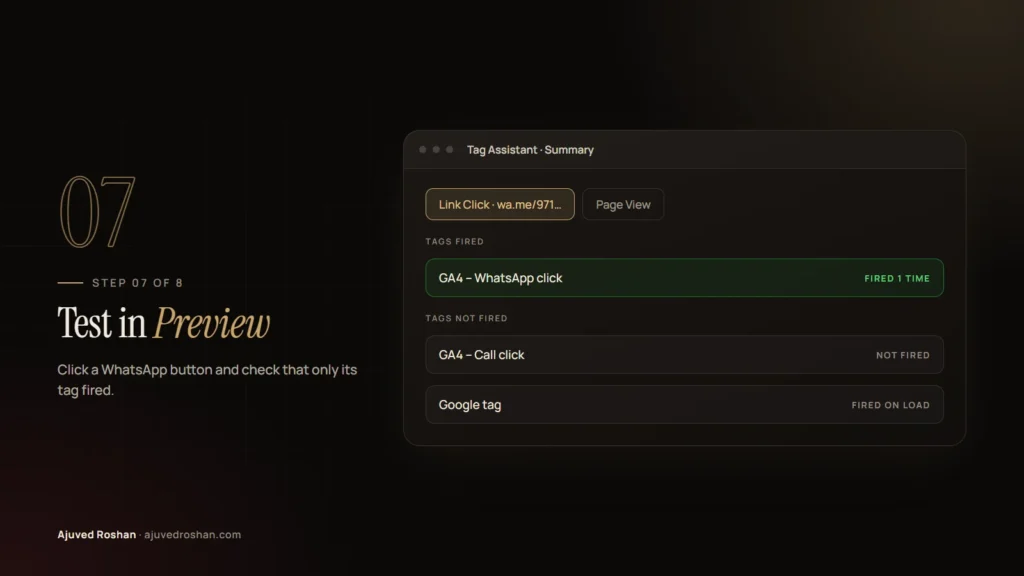
Step 7: Test everything in Preview mode
Click Preview in GTM, enter your website address and click Connect. Your site opens in a new tab with Tag Assistant attached. Click a WhatsApp button, then a phone link, and check Tag Assistant:
- Under the WhatsApp click, GA4 – WhatsApp click should appear in Tags Fired, and the call tag should not.
- Under the phone click, only the call tag should fire.
- Open the tag and check that
link_urlandlink_texthave real values.
If a tag doesn’t fire, the usual cause is a link format the trigger doesn’t match, so check the Click URL value in the Variables tab.
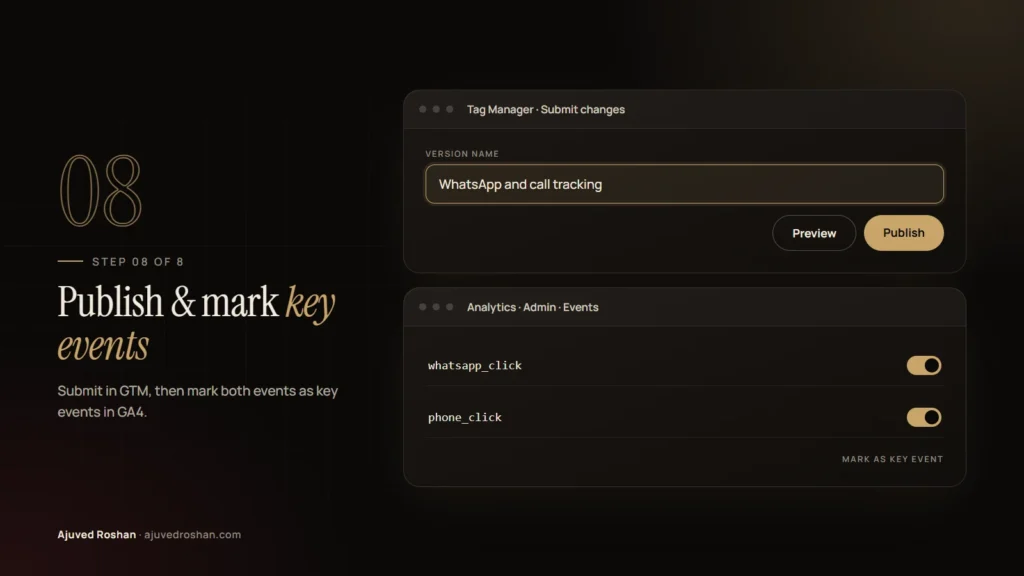
Step 8: Publish, then mark key events in GA4
Back in GTM, click Submit, give the version a clear name such as WhatsApp and call tracking and click Publish. Nothing is tracked on the live site until you publish.
Once the events have been triggered on the live site, they appear in GA4 under Admin → Events (it can take up to a day). Mark whatsapp_click and phone_click as key events so they count as conversions in your reports.
Bonus: use the events in Google Ads
If you run Google Ads with a linked GA4 property, you can import the key events as conversions in Google Ads under Goals → Conversions → Import. Campaigns then learn which clicks bring real WhatsApp and phone enquiries, not just visits.
If you can’t see an enquiry, you can’t improve the campaign that brought it.
Common problems and how to fix them
| Problem | Likely cause |
|---|---|
| Tag never fires | Container not published, or GTM code missing from the page |
| Every visit counted twice | GA4 installed directly and through GTM |
| WhatsApp clicks missing | Button uses a different link format or opens a chat widget |
| Events not in GA4 | Wrong Measurement ID, or reports not updated yet |
| Clicks counted on the wrong page | Link opens in a new tab before the tag sends; GA4 usually still records it |
Some sites push their own events to GTM’s data layer instead of using click triggers. That is more robust for complex sites, because the website names the event and adds details such as where on the page the click happened. On this website, every WhatsApp and call click sends whatsapp_click or phone_click to the data layer with the location of the button.
Want it set up for you?
I set up Google Tag Manager, GA4 and ad conversion tracking as part of every landing page and lead generation project, and for existing websites too. See also technical SEO and web development.
Want WhatsApp and call tracking set up on your website? Message me on WhatsApp or send a project enquiry. I reply within one working day.