Hacks, failed updates, a deleted page, a hosting problem: sooner or later every website needs a backup. The businesses that recover in an hour are the ones that set backups up properly before anything went wrong.
What a complete backup includes
| Part | What’s in it |
|---|---|
| Database | Pages, posts, products, orders, settings, users |
| Uploads folder | Images, PDFs and other media |
| Themes and plugins | The code that builds and runs your site |
| wp-config.php | Database connection and key settings |
A backup of only the database, or only the files, isn’t enough to restore a working site.
How often to back up
| Type of site | Suggested frequency |
|---|---|
| Brochure site, rarely updated | Weekly, plus before every update |
| Blog or site updated often | Daily |
| Online store or booking site | Daily at least, ideally more often for the database |
Always take a fresh backup before updating WordPress, your theme or plugins, and before any big change.
The 3-2-1 rule
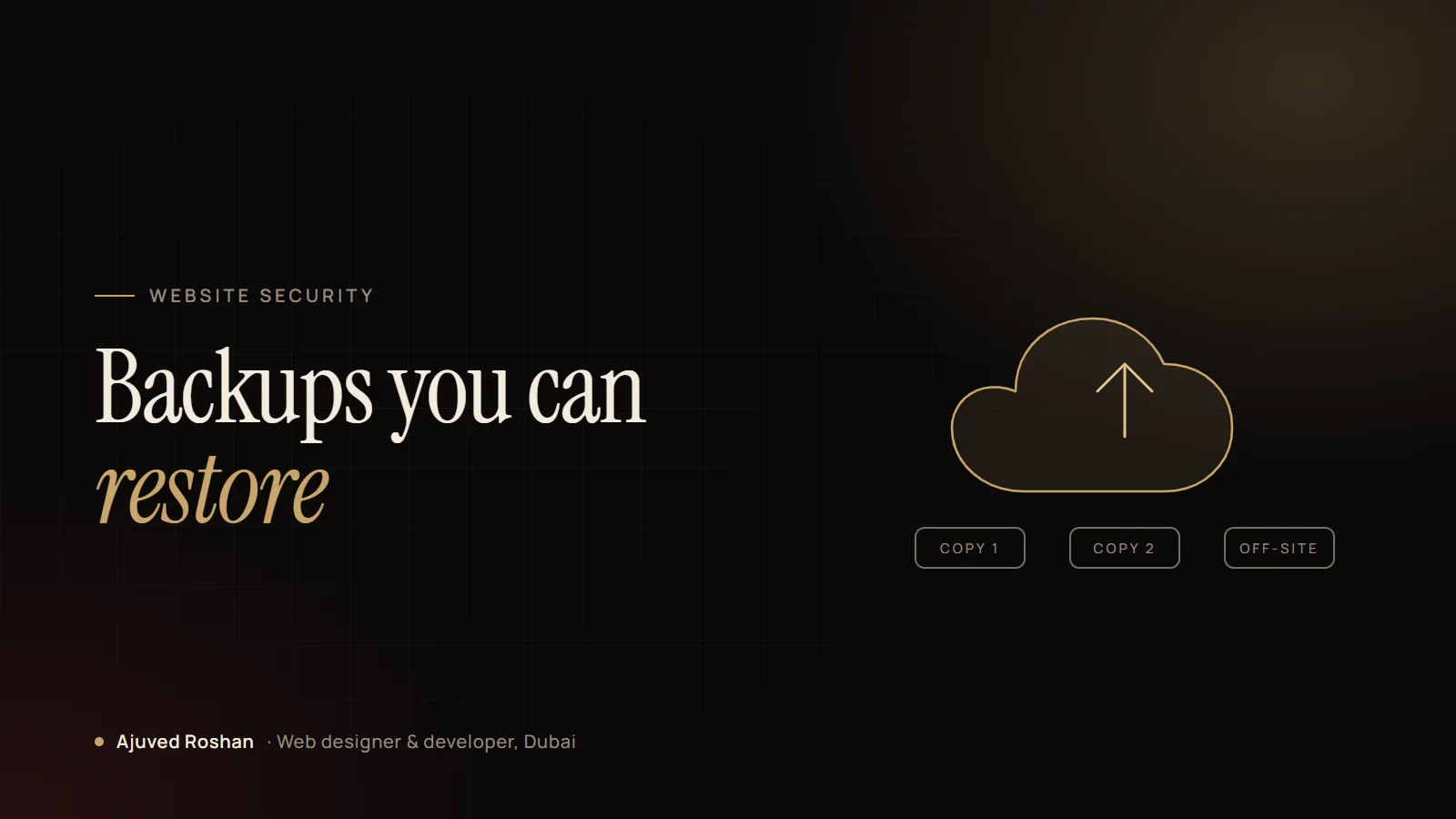
- 3 copies of your data,
- on 2 different types of storage,
- with 1 copy off-site, not on the same server as your website.
If your only backups live on the same hosting account, a server failure or hack can destroy the site and the backups together.
Ways to back up
Hosting backups
Many hosts take automatic daily backups. They’re convenient, but check how long they’re kept, whether you can restore yourself, and remember they’re usually on the host’s own infrastructure.
Backup plugins
Plugins such as UpdraftPlus, BlogVault or Jetpack VaultPress Backup can schedule backups and send copies to cloud storage like Google Drive, Dropbox or Amazon S3. Choose one well-maintained plugin and configure off-site storage.
Server-level backups
On a VPS or cloud server, snapshots and scheduled backups of files and databases to separate storage give the most control. This is what I set up for clients on managed servers.
Test your restore
This is the step almost everyone skips. At least every few months, restore a backup to a staging copy of the site and check that pages, images, forms and (for shops) orders work. You’ll learn how long a restore takes and spot broken backups before you need them.
Keep backups safe
- Protect cloud storage accounts with strong passwords and two-factor authentication.
- Keep older backups too, not just the latest one. Hacks are sometimes discovered weeks later.
- Don’t store backup files in a public folder on your website.
The question isn’t whether you have a backup. It’s whether you’ve ever restored one.
Let someone else handle it
Backups are part of a wider security plan. See the website security checklist and what to do if your WordPress site is hacked. My security and backups and care plans include tested, off-site backups.
Not sure your backups would work? Message me on WhatsApp or send a project enquiry. I reply within one working day.