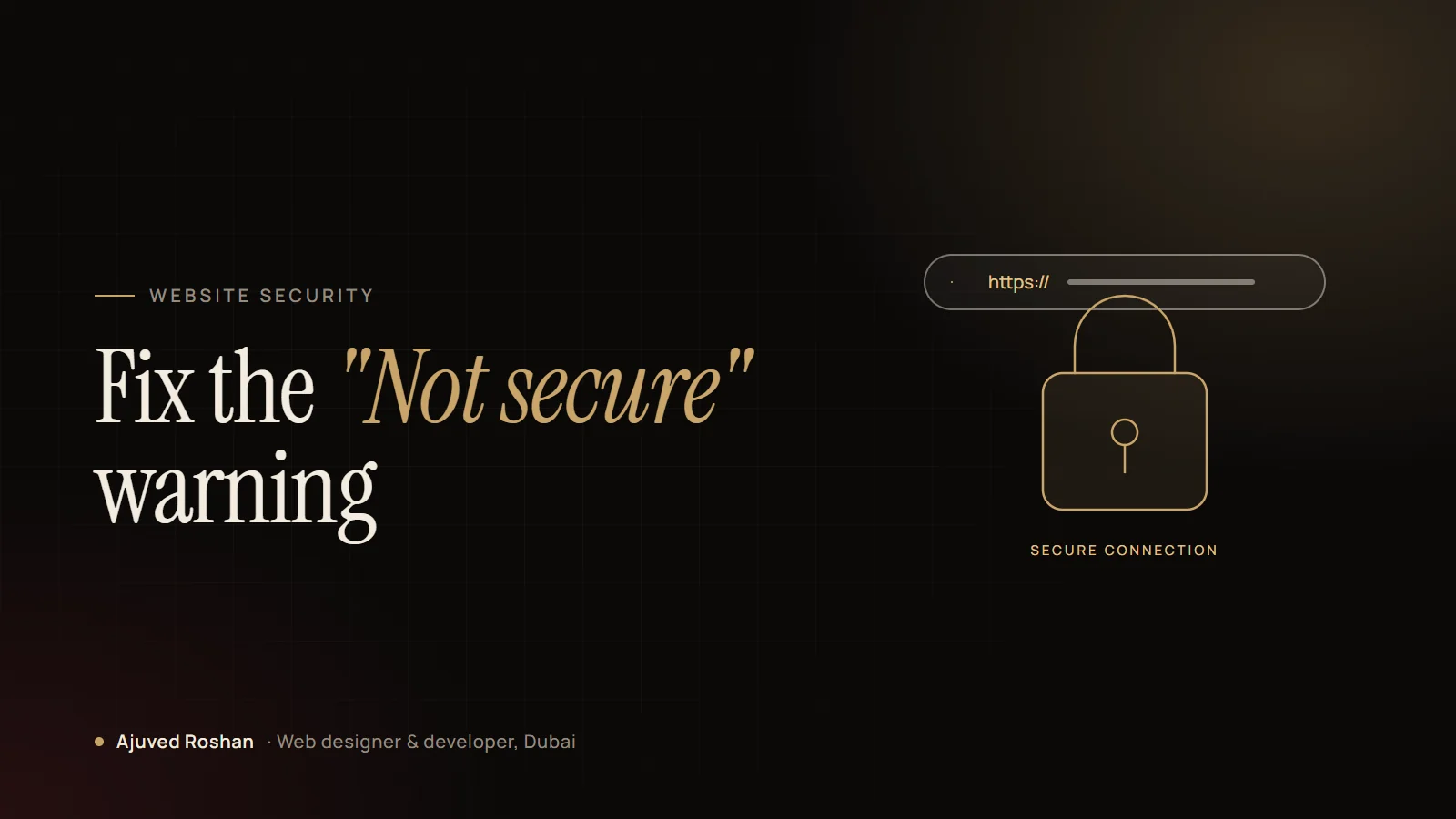
Short answer: A ‘Not secure’ warning means your site is not fully on HTTPS. Install an SSL certificate (free from Let’s Encrypt through most hosts), make sure it renews automatically, 301-redirect all http traffic to https, fix mixed content that still loads over http, and cover both the www and non-www versions.
You open your website and see Not secure next to the address. Customers see it too, and many will leave rather than fill in a form on a site their browser doesn’t trust. The fix is usually simple.
What an SSL certificate does
An SSL certificate (technically TLS) encrypts the connection between the visitor’s browser and your website. That’s what turns http:// into https://. Without it, anything typed into your site, such as names, phone numbers and passwords, travels in plain text.
Browsers mark sites without HTTPS as not secure, and Google uses HTTPS as a signal for search. Today, every website needs it, not only online shops.
Why the warning appears
| Cause | What you’ll see |
|---|---|
| No certificate installed | “Not secure” on every page |
| Certificate expired | A full-page warning about an invalid or expired certificate |
| Site still loads on http:// | HTTPS works, but visitors arriving on http:// see the warning |
| Mixed content | The page loads on HTTPS but some images or scripts still load on http:// |
| Certificate for the wrong name | Works on www but not without it, or the other way round |
How to fix it
1. Install a certificate
Most hosting companies offer free certificates from Let’s Encrypt and can install them in a few clicks in the hosting panel. Paid certificates add extra validation, but for most business websites a free certificate gives the same encryption.
2. Make sure it renews automatically
Free certificates are short-lived and must renew automatically. If your site suddenly shows a warning after months of working, check that auto-renewal is on and that your domain still points to the right server.
3. Redirect all traffic to HTTPS
Every http:// address should send visitors to the https:// version with a 301 redirect. Many hosts have a “Force HTTPS” switch. In WordPress, also make sure Settings → General shows https in both address fields.
4. Fix mixed content
If the padlock is missing on some pages, an image, font or script is still loading over http. Open the browser’s developer tools (Console tab) to see which files. Update those links to https, or use a search-and-replace tool to update old http addresses in your database.
5. Cover both www and non-www
Your certificate should cover yourdomain.com and www.yourdomain.com, and one should redirect to the other.
After switching to HTTPS
- Add the https version in Google Search Console and submit your sitemap.
- Update the website address in Google Business Profile, social profiles and ads.
- Check forms, payment pages and embedded maps still work.
HTTPS isn’t a feature any more. It’s the minimum visitors expect.
More on security
SSL is only one part of a secure site. See the website security checklist for small businesses, or let me handle it through security and backups.
Frequently asked questions
Is a free SSL certificate good enough for a business website?
For most business websites, yes. A free certificate gives the same encryption; paid certificates mainly add extra validation of the organisation.
Why does my site show ‘Not secure’ even with a certificate?
Common reasons are visitors still arriving on http without a redirect, mixed content (images or scripts loading over http), an expired certificate, or a certificate that doesn’t cover both www and non-www.
Does HTTPS affect Google rankings?
Google uses HTTPS as a signal for search, and browsers mark sites without it as not secure, so every website needs it, not only online shops.
Sources and further reading
- HTTPS as a ranking signal (Google Search Central Blog)
- What is mixed content? (web.dev)
- Getting started (Let’s Encrypt)
Seeing a security warning on your site? Message me on WhatsApp or send a project enquiry. I reply within one working day.